
You want all your GMail messages to have a label, maybe several. Maybe you need to clean out a bunch of cruft and your unlabeled email is usually not important. So you want to find unlabeled GMail messages.
Easy, right? You just search on has:nouserlabels (see Method 2 below). Unfortunately, this still doesn’t work reliably for me (updated March 2019). It will include a lot of email threads with labels.
So how do you find GMail message with no label?
There’s no simple button you can push. But you don’t want to wade through the whole set of emails manually, right?
A little filter magic will sort this out in no time.
This is a pretty long article, so I’ve organized this article into sections — click any link below to jump directly to the section that solves your problem. (NOTE: I update these periodically to incorporate new user comments.)
Below the links is a Preface on my original motivation and my current feeling about labeling or not.
Jump to Quick Answers:
- Method 1 — Simple and mostly reliable
- -has:userlabels -in:sent -in:chat -in:draft -in:inbox
- Method 2 — Simple but doesn’t work for everyone
- has:nouserlabels -in:sent -in:chat -in:draft -in:inbox
- Method 3 — Highly reliable but a pain in the butt
- -label:{label1 label2} -label:label-three -label:label-four -in:sent -in:chat -in:inbox
- Method 4 — Roundabout but very effective
- Search for everything with any label (has:userlabels), apply a new label to all messages found, then search for messages with no labels. This can help with some of the issues related to Conversation Mode.
- Bonus: How to get a list of all your labels
Advanced Topics and Related Issues
- Conversation mode and labels
- Understanding GMail Filters
- Multi-word labels are a bit more complex
- Save your search for later use
- Additional operators and pseudo-labels
- Labeling your backlog
- Dealing with child labels and labels with special characters
- Dealing with large-scale operations (lots of labels or lots of messages)
Community Contributions
- Jump to User Comments
- Your Feedback Needed: Email in general, what’s your top pain-point. Let me know.
Preface: To Label or Not to Label

Why do we even want to find unlabeled emails?
I assume if you’ve arrived here, you already have your reasons. But you might be asking, why get so obsessive?
A couple of possible reasons:
- You may want to do an import from another account or something like that. So you label everything currently in your account with “main” and then when you import, you find all unlabelled messages, label them “imported” and then delete the “main” label.
- You just like every single thing to have a label because you’re that kind of person.
I’ll be honest — when I wrote this, I wanted everything to have a label. Why? Because in the past I had used clients like Thunderbird and Outlook that had the concept of folders, but not labels. The inbox is just a folder. So if you want to get something out of your inbox, it has to go in a different folder.
Gmail is different
Gmail is different. For one, the search function is really good. This means that I am more likely to look for something via search, than by drilling down through folders/labels.
In short, I do not ever use this method myself anymore. Instead, I have a manageable number of labels and a lot of filters. Most recurring emails get a label automatically and then I archive when needed. I label things that I need for taxes or with a project name, but typically I have a filter that just applies the label. Then I depend on search. Automate what you can. Forget 90% of the rest.
That doesn’t mean people don’t have very good and compelling reasons for wanting to find unlabeled messages, but you might ask yourself whether or not you’re bringing an Outlook/Thunderbird mindset to a Gmail and just let it go.
I originally wanted everything labeled, but I was wrong. What I found was that I was better at remembering conversation keywords than I was at remembering labels and searching for conversation keywords is Google’s core competency. I decided that organizing my email manually was a waste of time and a study by IBM confirms this.
Yes, I have been assimilated by the Gorg!
Quick Version: GMail Filters for Finding Unlabeled Messages
This article has evolved a lot as Gmail evolved and I’ve tried to rationalize it a bit and get to the point (it was littered with dated “updates”). Here’s the short answer. If you want to understand what these filters mean, how we came up with them, or how to use them, scroll down for the original article which gives all the practical and theoretical background on custom Gmail filters.
All right already, show me the method!
Method 1 — Simple and mostly reliable
Still on January 1, 2018 as I edit this, the best method currently seems to be to exclude anything that has custom labels or one of the standard built-in labels as follows (thanks Tony Franks for the comment from 2013-07-01):
-has:userlabels -in:sent -in:chat -in:draft -in:inbox
Ron Wolf suggests in the comments (Nov 29, 2016), to add -from:me to the search to avoid getting your own messages. I find these are the ones that often don’t get labelled and are the ones I’m searching for, but again, it all comes down to how you use Gmail.
You just enter these searches into the search box, click the Select All checkbox and then click the link to select all messages matching your search, as in the screenshot below (click to view full size):
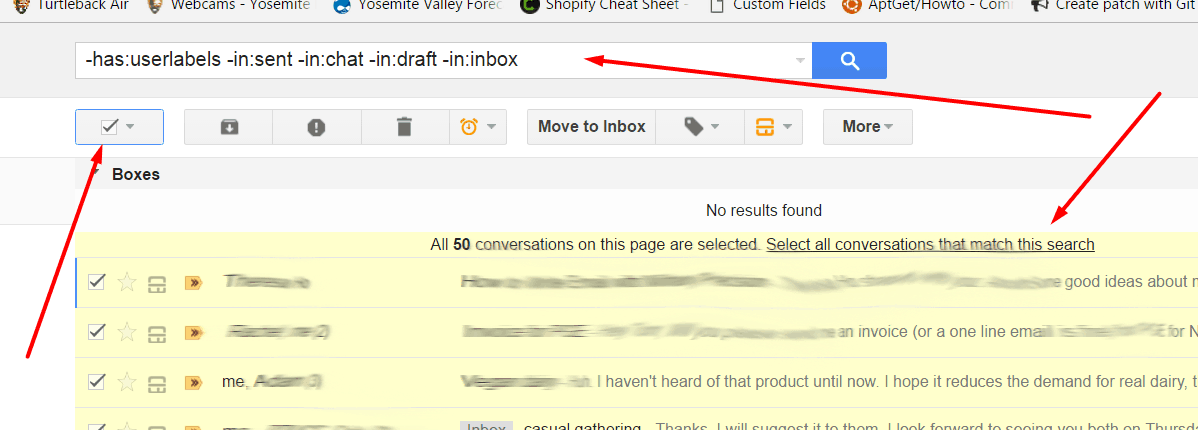
You’ll notice that at the bottom of the screenshot, the last item is in the Inbox and should not get found. That’s part of a threaded conversation with multiple participants where people aren’t using Reply All. That seems to result in having Gmail see some of the subthreads with some participants as having been archived and meeting the search criteria. So it isn’t perfect.
Method 2 — Simple but not very reliable.
If that doesn’t work, you can try a method JonG posted on 2013-01-14. Unfortunately, that method seems to be flaky for many people. It used to be it never worked at all for me, but now (March 2019) I think it works about as well as Method 1 but seems to reveal a few more false positives:
has:nouserlabels -in:sent -in:chat -in:draft -in:inbox
Method 3 — highly reliable but a pain in the butt
My original method is more labor-intensive but at the time, the special “userlabels” and “nouserlabels” pseudo-labels weren’t available, so you had to laboriously build a search and save it for future use. This method is a pain in the neck, but works reliably precisely because it doesn’t really depend on any tags with special meaning. The key is that you can combine single-word labels in braces, but multi-word labels need their own entry with the spaces replaced by dashes, like so:
-label:{label1 label2} -label:label-three -label:label-four -in:sent -in:chat -in:inbox
If you do this more than once, typing in all your labels in the arcane syntax Gmail uses gets old. So what I’ve done is simply create a shortcut (aka bookmark), which you can do quite easily and it works up until you add a new label, but then it’s just a simple matter of editing the bookmark.
Method 4 — Desperate Measures
Finally, if all else fails, you can use this roundabout method from Federico (comment from 2013-06-08):
- First search for every message that HAS a label (has:userlabels)
- Label ALL of the results with a new “LABELED” label (or whatever you want)
- Now search for has:nouserlabels
- Ba Dum, you got them!
- Delete your “LABELED” label.
Using Label Manager to find all labels
Thanks to commenter Chris who alerted me to a new Google Sheets Add-On called Labels Manager. Basically, it lets you connect your Gmail or GSuite account to a Google Sheet and pull all labels into a spreadsheet. You can also do things like rename your labels and move a child label to another parent.
Chris describes how he uses this to put the labels into a format that is usable in filters:
For example, once I had all of my labels in a column, I put them in lowercase with the =lower formula. Then copied and pasted into a new column so I could find spaces in my labels and replace with dashes (-). Then I simply used the formula = CONCATENATE to make the “-label:” part then another =CONCATENATE to merge them into a usable string. Took about 2 minutes for 158 labels.
Comment by Chris
You can actually do this in one line with no cut and paste. Assuming that your labels are in cells A1:A100, your Google Sheets formula would look like this:
=CONCATENATE("-label:", TEXTJOIN(" -label:", TRUE, ARRAYFORMULA(SUBSTITUTE(LOWER(A1:A100), " ", "-"))))
Basically, working from the inside out, you LOWERcase your labels and SUBSTITUTE hyphens for spaces across the whole range (i.e. use ARRAYFORMULA). Then you TEXTJOIN each cell, using ” -label:” as the joining text (note the leading space on ” -label”). Since this does not “join” anything to the front, you’re missing one label and we wouldn’t want the leading space in there anyway. So finally, you have to add (CONCATENATE) to the front your initial “-label:” (note lack of leading space). In TEXTJOIN we set the second parameter to TRUE so that if there are any empty rows, they get skipped. And there you go — you should have every single label negated in one giant filter.
Conversation Mode and labels
With all methods, Danimal suggests turning off conversation mode (threaded conversations) as that can make things confusing.
I like leaving conversation mode on because I generally want to catch only entire conversations with no labeled messages at all. If any message in the thread is labeled, that’s good enough because I’ll find the conversation via the label.
But if you want to find not unlabelled threads, but all unlabeled individual messages, then you need to do as Danimal says.
Details: Understanding GMail Filters
You have a full syntax and a compact syntax and, as far as I can tell, the compact syntax does not work with multi-word labels. So if you have Gmail labels with spaces in them, you have to use the full syntax and substitute hyphens for spaces.
So let’s say you have the following labels:
- Label1
- Label2
- Label Three
- Label Four
First, we want to exclude all messages that have those labels. To exclude a labeled message from your search, you use the -label: operator.
For the single-word labels, we’ll use the short syntax. This allows you to group terms within curly braces without repeating the “-label:” qualifier. So it looks like this in your Gmail search box
-label:{Label1 Label2}
Simple as that.
Multi-word labels are a bit more complex
Now for the multi-word labels, in theory, I merely need to add quotes around the terms, and they should work within the curly braces. Not so for me. If you create a filter and look at the test search, that’s not how it does it either. So based on that, what I found worked for Label Three and Label Four was:
-label:Label-Three -label:Label-Four
So the entire search, with both single-word labels and multi-word labels, looks like this
-label:{Label1 Label2} -label:Label-Three -label:Label-Four
Now, that will create a URL that looks like this
http://mail.google.com/mail/#search/-label%3A%7BLabel1+Label2%7D+-label%3ALabel-Three+-label%3ALabel-Four
Save your search for later use
Now you can save this as a bookmark or shortcut and instantly access your unlabeled Gmail messages. Sometimes Gmail will add a zx parameter to your URL that looks like zx=afeoasdxou3swf that is just a random string so that if your ISP is caching data, it will see this as a unique URL and won’t give you cached data for Gmail. Since this effectively creates a single-use URL, if that appears in your URL when you do your search, you should edit it out before saving the bookmark.
Note that if a message has two labels and you are only excluding one of those, the message will still show up in your search. So if you have something labeled Label1 and Label5, and you use the search above, it will still show up in your results.
Also, sometimes a conversation that is labeled shows up because one message is unlabeled or is still in the Inbox. If you select the whole conversation in the list view and label it, that takes care of that issue.
Additional Operators and Pseudo-Labels
As you saw above, there are additional operators (in and has) and special built-in pseudo-labels (userlabels).
Depending on what you are trying to do, you can shorten or refine your search by using in with any built-in label (inbox, trash, etc) and has with userlabels.
- -in:inbox (don’t find anything if it’s still in the inbox)
- in:trash (if you want to search the Gmail trash, you need a special operator because by default it’s excluded)
- in:anywhere (lets you do a search that includes spam, trash, inbox and, well, messages found anywhere)
- -has:userlabels should be the same as has:nouserlabels, but in practice people report that they are not.
There are tons more options. See the Google Gmail Label Documentation for a full and current list.
Labeling Your Backlog
As per Karen’s suggestion below (see comments), if you’re trying to identify your unlabelled email just once and label your backlog, then you can view All, apply a label like “NoLabel” to it (or move them all to the Inbox as Karen suggests).
Now go into every other label folder, select all and remove the “NoLabel” label (or Archive if you put them in the Inbox). Now if you go to the NoLabel folder, you have all your unlabelled email. If you’re going to do this on any kind of regular basis, though, you’ll want a bookmark as described above, otherwise this will be pretty time-consuming.
Dealing with Child Labels and Labels with Special Characters
James asks, what happens if you have special characters like underscores or slashes in your Gmail labels? If you are using the Gmail sublabel feature, you will automatically have slashes because Gmail separates parent and child labels with slashes (look at Gmail in the Basic HTML mode and you can readily see this). First off, most special characters are just entered as such. Slashes must be entered as hyphens.
So let’s say you have the following setup:
- Main
- test1
- test2
- test3/test4
- test*,:-test-./test
- test1
In that case, your search syntax will be, respectively
- -label:main
- -label:main-test1-test2
- -label:main-test3-test4
- -label:main-test*,:-test-.-test
Note that a label called “test3/test4” which is a single label, behaves exactly the same as test2 which is a child label of test1. And for anything except slashes and spaces, which are both replaced by hyphens, you just use the character as it appears in the label. That’s even true for the colon, even though it’s part of the search syntax.
Large-scale operations (many messages or labels)
In Hartmut’s comment from 6 May 2021, he notes that some of the issues people have with large-scale operations involving thousands of messages (>5000) or hundreds of labels, it can take a few days for everything to process and stabilize, so results might not appear as expected right away. That correlates with my experience on a smaller scale: with a couple thousand messages, I often find it takes several minutes for things to shake out.
He recommends in addition that once things stabilize, you check any target labels to see if the numbers look right.
To speed up the process and be able to work with your new group of messages earlier, he suggests the following:
- Select All (two steps: checkbox, then link to select all including messages not on current page)
- Assign a temporary label that you may later throw away. This gives you a group that has only the messages from the current operation included, and Google seems to catch on to that quicker.
- Work with the new group as needed.
Once you’ve done what you need to do, you can delete that temporary label. Nice tip!
A Question for YOU (please read)
Did you really make it all the way to the end of that article? You have endurance and perseverance, which makes me think I can ask one little favor. Would you be so kind as to add a comment below or go to my contact page and tell me what trouble you have with email currently. What is your top email pain point? I’ve been giving a lot of thought to the topic over the last couple of years and am preparing some articles on the subject and would love to hear from you about what you would like help with or your best ideas for reducing the pain of email hell.
I guarantee that you will not get added to any mailing list and, in fact, your email address won’t even get saved except insofar as WordPress saves it with all comments and form submissions as a spam-fighting tool.
I can’t get your solution to work. I have been trying all night and I can’t get Gmail to subtract more than two labels from the search. If I subtract the labels “friends” and “family” then no matter what netative search I put next, it will not recognize it and come up with a proper list. I could live without being able to subtract all the labels, but there are three major labels I use, and in order to find the unlabeled messages, even by hand, I need to remove these other three labels. It’s very frustrating.
Sorry Jill. It can be frustrating and maybe I haven’t explained it well. It took me a lot of tries.
If you post your list of labels, I’ll see if I can’t get it to work right.
Thanks for the tip. Just what I was looking for.
But regarding:
“aside from Gmail not having a decent way to delete a message without get kicked back to the message list (instead of just going to the next message like every other email client on the planet”
Just for the record, there are people (at least one?) that prefers this behavior. I selectively scan and read my inbox, leaving unread the messages I may not want to deal with at the moment. Many (most) of these can be determined just from sender/subject.
Thanks Matt. I’m sure you’re not the only one as the designers must really like it this way and my nephew thinks the gmail interface is near perfect. I would just love it have it as a setting (i.e. action to take on deleting current message).
I hope the unlabelled message thing works for you. It didn’t work for Jill and I tried to help by email, but I just couldn’t get my method to work for her.
Thanks a million for this it really helps.
What I found annoying was that it was also bringing in all my chat logs. I found starting the search queury with in:inbox solved this.
So my search looks like this:
in:inbox -{label:Label1 Label2 Label-three}
thanks!
I also remember there being a greasy monkey script that would add a shortcut to your list of labels and call it “unlabeled”, clicking it would lists all the unlabeled messages.
I haven’t tried it yet, but you’re right, there is a Greasemonkey script (two actually).
http://userscripts.org/scripts/show/13937
http://userscripts.org/scripts/show/36752
Tom – thanks for the post. I was initially hestitant to do it as i had 50+ labels and finally tried it. It worked as expected.
Thanks for this!
You might be interested to know that slashes (/) for subfolders also get replaced by hyphens, so to exclude ‘top folder/subfolder’ you would use ‘-label:top-folder-subfolder.
Square brackets don’t get changed though, so to exclude ‘[Imap]/Drafts’, you would use ‘-label:[imap]-drafts’.
Thanks guys and thanks Chris for that tip!
If I’m reading your lament about deleting messages correctly, and you actually mean archive, try using “[” while in a message. It archives the messages and goes to the next one. If not, never mind.
No Sam, I don’t mean archive. Archive is Archive and Delete is Delete.
I don’t want to archive spam mails, non-spam mass mails about Home Depot’s Labor Day sale, one-line mails from a friend where someone says “Okay, Sunday at 7:30 then” which are useless come 7:31 on Sunday. I suppose I would also delete embarrassing and incriminating emails if I had any of those, though I try to not write those in the first place!
Ideally, I want messages that only have some information that I could conceivably care about cluttering up my archives.
The trick to find ONLY the unlabeled mails (neither those emails who are in a conversation)
The method is the following:
Step 1: Seach for mails containing all labels using the OR-operator (ie. label:label1 OR label:label2 OR label:label3 etc.)
Step 2: Star al these conversations.
Step 3: create a new label (ie. LABELWITHOUTSTAR)
Step 4: Seacht for conversations without a star ( -is:starred)
Step 5: Select al these conversations and apply the LABELWITHOUTSTAR label.
Finished!
Hey Wander,
Thanks for the tip.
The problem with that is that you have to do it every time, and then you also have to use stars that way.
Once you set it up, my method gives you one-click access to all those messages without any other steps.
Which method you prefer would depend on how often you do this. If you do it a lot, it’s worth the overhead to set up my method. If you just want to do it rarely, then your method is probably less effort overall.
The way not to do it every time and make only unlabelled messages show:
1 – Create a label and call it UNLABELLED for instance
2 – Create a filter with the following code in the “Doesn’t have:” space:
l:label1 OR l:label2 OR l:label3 OR …. OR from:me OR in:chat (replacing label1, label2, etc with the names of your labels)
3 – Click “Next step >>” and in “Apply the label:” choose UNLABELLED or whatever name you’ve given to your new label in step 1.
4 – Click “create filter”.
5 – From now on to see only unlabelled messages click on UNLABELLED label.
Hmm, maybe I’m missing something, but I think I have a better solution :-) (Ok, I’m probably totally missing something, but here goes)
The Skip-Inbox-mehod.
The idea is do this all “backwards”: Let *no* email with a Label applied end up in the “Inbox”. The Inbox will be that interesting place where you notice those unknown unknowns — only *unlabeled* messages end up there.
To emulate the functionality of the regular Inbox (now that we’ve sort of “ruined” the real one), use a new Label called TheBigInbox.. and a create a new Filter that will apply that Label to *all* messages:
* Matches: from:(*)
* Do this: Apply label “TheBigInbox”
Why is this better? Well, it’s *easier* to tell each Filter (that applies a Label) to “Skip Inbox” than to enumerate all Labels (handling spaces and using curly braces and whatnot) in a query. And when a new Filter (Label) is created, there is no need to edit that cumbersome search query with curly braces and all, just tell it to “Skip Inbox” — that’s all! This should be more maintainable, right? Two examples:
== The following filters are applied to all incoming mail: ==
* Matches: from:([email protected])
* Do this: Skip Inbox, Apply label “Donald”
* Matches: list:”known-unknowns.com”
* Do this: Skip Inbox, Apply label “known-unknowns”
Thanks,
– Hugo
does anyone know if there’s a wildcard operator? ALL of my labels start with “INBOX\” so a wildcard would solve my problems, although that doesn’t seem to be working when I try it.
-label:{INBOX\*}
Matt –
yes! finally able to search for unlabeled mail! thanks a lot.
also used your information to be able to create quick searches that search for labeled mail in inbox (so I can archive them quickly) and all sorts of other useful tricks
thanks a lot again.
best regards
sfd
Tom,
sorry, accidentally called you Matt – again. thanks for the info.
best regards
sfd
Steve, I don’t think there’s a wildcard. At least not to my knowledge. It would be nice if they just added a system label like the “Unread” label
l:^u
l:unread
label:unread
Will all show unread messages. Why not a l:nolabel system tag?
SFD – no problem. Matt. Tom. Hey. I’ll answer to anything that’s not insulting.
I don’t believe anyone has addressed the problem of having conversations that still show up when some of the messages within those conversations match the search. The solution is relatively simple, as long as you don’t have a ton of labels and/or filters: Select all conversations in a given label, then move them to a new label. This will label ALL messages within each conversation. Then the search works perfectly as given.
Following on from Bill’s comment above about some still showing up, I had the same issue and it seems to be that the search only works if the label was applied to the first message in a conversation.
What I did was unlabel them and apply the label again.
So far, the emails within emails that don’t have labels are messing me up, as it’s bringing all those forward even though single emails have labels.
It seems that Andre’s method is going to work for me… So far, so good, anyway. :)
“The way not to do it every time and make only unlabelled messages show:
1 – Create a label and call it UNLABELLED for instance
2 – Create a filter with the following code in the “Doesn’t have:” space:
l:label1 OR l:label2 OR l:label3 OR …. OR from:me OR in:chat (replacing label1, label2, etc with the names of your labels)
3 – Click “Next step >>” and in “Apply the label:” choose UNLABELLED or whatever name you’ve given to your new label in step 1.
4 – Click “create filter”.
5 – From now on to see only unlabelled messages click on UNLABELLED label.”
Oh plus… what I really want (and Andre’s method seems to solve) is to give a no_label label too all incoming mail that is not assigned another one of my labels. I don’t really want a rule for every single email that I get.
This would be contingent upon Gmail applying the other labels first, and then applying the no_label label last, after checking for any other labels. I don’t know how gmail’s logic works, but so far, so good.
Well, I’m glad you have a semi-workable solution. I don’t think you’ll ever get GMail to follow complex order of operation rules whereby you check all other rules and if it doesn’t have a label yet, it gets “no label” Or at least it will take a long time given that you can’t even have multiple signatures yet!
Thanks it works although it was time taking as i had lots of labels in my gmail, but thanks it works
Yeah, I have a ton of labels, so it is a hassle. Google has been making a lot of enhancements lately, so we can hope for an integrated solution.
A fine read (Your headline, ‘
Find All Unlabeled Gmail Messages :Raised By Turtles’ made me giggle) and some quite interesting points made. The fact that merely a modest percentage of people will likely be affected to my mind doesn’t cause the measures used here.
Thanks for this. I had a lot of labels so I shortened the process of creating the search string by copying and pasting them all into Excel, sorting and deleting non-label items, then pasting just the labels into Word and changing the end-of-line characters to spaces. Then I had to remember that any labels for sub-folders have to be written using the “full” syntax. THEN I had to remember to switch Conversation view off. But ultimately it worked great! How absurd that Gmail does not already include a simple “Search for unlabeled messages” button!
after pasting my labels into excel, i discovered i have 195 of them. it was easy enough to apply the syntax to in excel, but the clincher here was that the search field in gmail did not accept that lengthy a string.
got to less than half-way. seems the character limit in the search field is approx 1,891.
ho hum.
i wish it just gave you a button you could press! maybe it’s going to be in an upcoming lab. :-/
Sorry it took so long to respond….
Thanks for the heads up on the 1891 character limit. That’s helpful.
Given that there are 30 comments on this page, that indicates some interest, and I bet there will be some Labs feature for this at some point.
Hey you should really check out gmail labs
Autoadvance and QuickLinks
Just use gmail archive function to achive this-
Step1: click on each lable to select all mails inside it and archive all the mails
Step2: go back to inbox and you will not see labelled mails, however they can be viewed when you click on the lable link or when you click All Mails lable
Thanks Saurabh – I’ll check them out.
Javed, thanks for the idea, but the problem is when I want to look at unlabelled emails that I have already archived. I archive all emails as I process them. I could create a label called “misc” and label every single email, but that’s a hassle.
Hi All
How about this:
1) select ALLMAIL, move all to inbox
2) go into each label, select all in that label and ARCHIVE
now the inbox should only contain emails that don’t have a label.
This works for me in the short term to sort all my old “archived” emails that previously had no label.
hope it helps someone.
Karen :)
What about labels with more than spaces…
For Example:
__Purchases/2010/Tax Deductible (Has underscores and multiple slashes for path)
[Imap]/Sent (brackets and slash for path)
Clients/Finished (Just a slash to denote path)
Jobs – Applied (spaces and a hyphen)
Thanks!
@Karen
You can do that, but it’s a bit of hassle to do that every time. You could also look at all mail, add a label called “Nolabel” and then go to every label, select all and remove the “Nolabel” tag and then everything in the Nolabel box has… well only one label, the “nolabel” label.
@James
Slashes are special and are replaced with a “-” so for example, if I have
Websites/test1/test2
the search label is “websites-test1-test2”
All the other characters are just used as they are.
Thanks for the tip! Works for me!
I’ve also found that when you have two or more words making up a label, you can use the hyphen (“-“) for the space and get the proper results, for example:
-label:{Priority-One Priority-Two}
would bring up all messages that do not have these labels:
Priority One
Priority Two
Thanks again!
Here’s another handy setup based on your helpful posts:
1) Near the “Search” button, click on “Show search options”
2) Fill in the “From” field with -Your-Name, to exclude items from “Sent Mail”
3) Fill in the “Doesn’t have” field with “l:Inbox OR l:label1 OR l:label2 OR …”
4) Click the “Search Mail” button to test
When the search is satisfactory:
5) Select the whole URL field in your browser
6) Click the “Compose Mail” button, paste the URL into the body of the message, add a suitable title, and mail this to yourself.
Now you have an email that you can archive with a clever title you can remember. Find the mail, click on the URL within and the search is re-created whenever you need it. As an email message, this follows to all platforms, not just your present browser.
Also, when you click the URL, the original search form is re-created, and you can revise the search with new labels when needed.
-Scott-
contact synchronization is possible through Thunderbird using Dropbox by creating symlinks to the impab files. If you also use Apple’s Address Book, it now syncs with Gmail and TB.
Thanks! :)
Excluding one label from a search fails when viewing the second page. ie: search results 1-20 do have the label excluded, but when I click the right arrow to view search results 21-30, the list includes emails with the excluded label.
Suggestions?
Hey Dan,
I’m not really sure. For me it works roughly as expected. It will progress to the next page (21 to 40 of 172) without issue except that the “of” part keeps changing until it finally calculates the true result and switches to “21 to 40 of many”.
To be honest , though, I’ve finally thrown in the towel and just use search to locate email.
Viewing Gmail Messages with No Label works with this: -label:?*
Jani,
I tried that. It didn’t work for me.
Google,
While the idea of “labels” is somewhat innovative, it is poorly implemented. Please fix this!
Jani, that doesn’t work for me either. It shows all kinds of mail, with and without labels.
Brett, aside from the issue with not being able to see items with no labels, what else is wrong?
This doesn’t work for me:
-from:([email protected]) -{l:inbox l:label1 l:label2 l:label3 l:lable4 l:label5 l:label6}
I seem to be picking up sent mail.
Hi Steve,
You’ll need to try all the various sent mail labels: sent, sentmail, sent-mail. So
-l:sentmail
and so on.
There’s a nice list of system labels over at http://googlesystem.blogspot.com/2006/10/hidden-labels-in-gmail.html
Thanks! I’m getting close with -is:sent and -l:Sent
Hello gyus,
i have a label which is called: appl
and i want the search to show me the inbox without the massages with the label appl.
So I typed in:
in:inbox -(label:appl)
and it doesnot work.
i tried this either:
in:inbox -label:appl
and it doesnot work too.
any suggestions???
It works fine for me. For example, I have a label YWPHI and I have one item in my inbox with that label.
in:inbox -l:YWPHI
shows me the contents of my inbox, minus items labelled YWPHI.
Alternatively, you could set up all of your labels to skip the Inbox. Then your inbox becomes the area for unlabeled emails. The “All Mail” area then becomes what your Inbox used to be.
Valerie – that’s pretty brilliant! Definitely a good alternative!
I’ma afraid this does not work for me at all. The method works when I have four or less labels in the string, but when I add further labels the search returns a seemingly random set of messages many of which have labels that I have excluded. I have checked the syntax meticulously and tried it in both shortened and full forms.
Hmmm… Not sure what could be the cause. One thing to watch for is if you have a message with multiple labels, it makes the filters a lot more complex, because even if you tell it not show messages with labelA, if a message has labelA and labelB, your filter will still show it based on labelB.
Could it be something like that?
I’m starting to try another approach: to use a filter to set a label to all incoming mail (I use the label “ND” for “Not-Done”).
When I manually label something I also remove the “ND”, so the former “unlabeled” messages now are the “ND” ones. Forgetting the cleaning of the “ND” label its not a big issue because delimiting searches using labels is easy, and you can do a clean up from time to time.
The filter simply labels all incoming mail that does not match something highly improbable (e.g. “hapevgdtaiahdg”).
has:nouserlabels works for me, this article is 3 years old
yep, all you need is this now:
has:nouserlabels -in:Sent -in:Chat -in:Draft -in:Inbox
Hi JonG,
Thanks for the tip. Interesting. I searched my mail for the word “water” just because I knew I had an unlabelled message with that in the title. And mostly your search worked – it filtered most, but not all, mail that had labels applied. The mail with labels that came through seemed to have no rhyme or reason, just the odd random label. But out of 169 results, only about five had labels and without your has:nouserlabels there were 280 results. So it seems to mostly work. Thanks!
I think you are saying that “has:nouserlabels -in:Sent -in:Chat -in:Draft -in:Inbox” will find all unlabeled emails in your inbox. I added some mails without labels and it does not find them :-(
If I have to list al my labels, that would be a pain since there are so many!
I have hundreds of labels. 250,000 emails. Any better solutions ?
Way late to the game, but this was still the first result when I tried to answer this. Turns out gmail finally caught on and got a solution:
has:nouserlabels
works beautifully. finally!
Danimal had a useful comment that I someone deleted, probably while bulk deleting spam comments. Anyway, it went like this:
“In order to get this to work correctly, you must turn conversation mode off.
Gmail puts labels on each individual piece of mail, this sometimes skips certain emails within a conversation.”
Hello!
The problem with has:nouserlabels is that it might show conversations where one of the messages doesn’t have a label, even if the others do.
You might want to try this:
– First search for every message that HAS a label (has:userlabels)
– Label ALL of the results with a new “LABELED” label (or whatever you want)
– Now search for has:nouserlabels
– BUM, you got them!
– Delete your “LABELED” label.
I found your original script:
has:nouserlabels -in:Sent -in:Chat -in:Draft -in:Inbox
was quite flaky, but a little tweak:
-has:userlabels -in:sent -in:chat -in:draft -in:inbox
does the job very easily
Thanks Tony – I moved your solution to the top so people would be more likely to see it
I tried the original method as well as Tony’s method on 6 accounts today, 2 regular GMail / Google accounts and 4 accounts under different Google Apps for Business accounts – both produced the exact same results.
I’, not sure about this, but country specific Google URLs, like google.co.in for Google India – do they have country specific URLs for GMail too? I just tried, but was redirected (after logging in) to mail.google.com, so I’m not sure if that would be a factor or not.
At any rate. I keep finding different recipes for Thunderbird for use with GMail, and invariably one particular setting that I change, having to do with email deletion, always creates these ghost entries that are not actually deleted, but hang around cluttering up my All Mail when they should, in fact, be deleted. This article is a lifesaver for me – I used to try to do it the old fashioned way – but I’m too old for hunt and peck in All Mail….
Thanks for this article and the revisits / updates.
Oh, gawd – thank you for this. I’ve been looking for the way to search for unlabeled items for YEARS.
Glad it helped. Take some time to read the comments too – I’ve tried to fold suggestions from the comments into the text, but there are some gems in the comments that folks have contributed that might be of use!
TY been looking for this for years but i had added a twist in that the label was based on an email and then using the has:nouserlabels i was finally able to find the non labels items within an email. TY!!!
Glad it helped!
[by the way – it double posted – I deleted the other one]
For those of us that can’t get -has:userlabels to work….Frederico’s solution worked like a charm!
Nice, thank you! Especially the Federico’s solution from June 18, 2013.
The tricky thing is that in a conversation, there can be messages with or without a label, so the conversation will be shown in both has:userlabel and -has:userlabel. This happens AFAIK when you assign a label to a conversation and the conversation then continues, so new messages are not assigned with the same label in advance.
So the Federico’s method is IMHO the only correct and straightforward solution for vast number of messages/conversations. Good job!
thanks for sharing.
it helps me find unlabel email back to inbox
“-has:userlabels -in:sent -in:chat -in:draft -in:inbox” does work but I recommend you turn off threaded conversations under settings. If you don’t turn off threaded conversations, your results to this query may be confusing if you’ve applied labels to some emails in a given thread while other emails in the same thread were archived. By turning off threaded conversations, all emails are listed individually and any with labels, even if part of a partially archived thread, are now excluded.
This is a good point – this used to throw me all the time when I first started with GMail. I couldn’t understand when all these messages that were missing my search word or label showed up. Now that I’m used to threaded conversations, though, I prefer to get the conversation rather than the individual message.
If you use the threaded view, though, labels always apply to conversations. And I try to keep my inbox close to empty, so I don’t really have partially archived threads. I guess it comes down to how you use GMail. I don’t know. As I say, I think at least for me, trying to find and label unlabeled emails was a fool’s errand. Now I label a handful of essential topics and just archive or delete the others and depend on search to find unlabeled emails.
Same for me, I realised that I had a label for everything but I wasn’t really using them. I essentially turned to Google Inbox from GMail and use only 3 custom labels. With automatic filtering and grouping messages into Updates, Forums, Promos, Social (which I will never search for) leaves me with only few messages in archive I can easily go through. I also realised that using search to find what I want was faster even when I had all messages labeled manually.
So, I definitely agree with “…it comes down to how you use GMail.”
Interesting! I tried Inbox because it sounded like I would like it, but I actually found it confusing. It kept grouping things in ways that didn’t make sense to me and I accidentally missed mails from friends and just never got it. I ended up switching to ActiveInbox which I really like but it does cost money (30/year) for one account and cheaper deals if you have more accounts.
I’ll have to try Inbox again. Does it learn your preferences and improve over time?
I still miss some features GMail has (advanced filtering options, send email to group just by typing in the group name,…), but I like the GUI of grouping emails in Inbox – it’s transparent for me.
It improves somehow (it is said that you can improve the labeling accuracy by manual assignement) but I’m affraid it’s not much sofisticated and leaves you with just a filtering by email address.
So far (few months) I haven’t noticed missing an email. It rather not assign the label at all than assign it incorectly. Also, you can set the LowPriority label not to skip the inbox, which may have been your case.
GMail is more technical, compact, powerful, but Inbox has some nice features like Pin, Snooze and Reminder, which are more obvious and easy to use, especially with Google Keep and Calendar. All of them are flawlessly synchronized on Android as well.
Thanks for the rundown. I think the Reminder feature is the one I would use. I have used things with Snooze (Boomerang, Streak) and ActiveInbox does not do this on the theory that you don’t want to just kick things down the road.
I don’t know as I always agree with that – sometimes I just want to snooze and email for a couple of days (like if someone says “If you don’t get it by Thursday, let me know”).
Incredibly helpful. Thanks!!
Thanks incredibly useful. All I needed was to use
label:unread has:userlabelsI could then find all the stuff that I had labelled but hadn’t marked as read (mostly) newsletters etc. This allowed me to run the converselabel:unread -has:userlabels, I then created filter rules for everything I saw…Glad it helped!
This is very helpful, thanks! Just a question: does anyone know what is unreliable about Method 1? Does it sometimes end up finding messages that actually have a label? Or does it sometimes miss finding messages that aren’t labelled? Or something else?
I think for some people it just doesn’t filter out all the labelled messages. The last complaint about that, though, is from 2014, so it may well be working better by now.
That was super helpful, thx! I’m one of those guys who labels everything, some of my labels are very generic tho. Anyway, just tonite discovered that somehow I had thousands of emails with no label with dates between 7/30/13 and 5/29/15 (my gMail use goes back way before that). No idea what was going on during that timeframe, but they almost all look like emails that I intended to delete or that filters should have deleted. I changed the search a bit because some mails from Notes were showing up as well as a few that I seem to have sent to myself. Also will just mention that the UI for deleting all mails from a search isn’t obvious and it took me a bit of searching around before I finally noticed it. anyway, here’s my slighted edited version of your search which seems to have worked great.
-has:userlabels -in:sent -in:chat -in:draft -in:inbox -in:notes -from:me
Thanks Ron. On my next revision I’ll add your suggested search to the main text as I’ve done for other useful ideas from the comments. This article is now fully crowdsourced… there’s probably a lesson in there
I just used “has:nouserlabels in:anywhere” in the search box on the Gmail web site and that seemed to work exactly as I expected (which was to find all unlabeled email that is currently hiding in my Google mail database because as much as I HATE Lotus Notes/Domino, Gmail in many ways operates like Notes/Domino in that your email box is just a database (Exchange/Outlook does this too, but it’s less obvious)).
Quick addendum, adding -in:sent removes things that I sent and never received a reply to (thus not needing a label from my perspective).
So after playing with this a little more, my final incarnation looks like:
has:nouserlabels in:anywhere -in:sent -in:trash -in:inbox
I clean out my Spam box daily, but for those who don’t, they might want to add it to the list of excludes.
Check out an app called IMAPSize. I think it downloads each Gmail message as a separate file. Doesn’t fully address your criticism, but with some regular expression magic you have a nice backup option. I haven’t used it in a while though, so I might be wrong…
http://www.broobles.com/imapsize/
Nice tip. I’ll highlight it in my next revision. Thanks!
Another good tip. Thanks again !
The web page I log into will not allow me to save your best filter “-has:userlabels -in:sent -in:chat -in:draft -in:inbox”. It keeps asking me to complete a form that is not relevant. Tried to save as a bookmark and that did not work. Please could you elaborate on how to save the text string as a filter or bookmark. Thanks and sorry to be dim.
It should just work. You’re just pasting this into the search box in Google. Then you just apply the labels from there.
This is (still) a great help. To solve the issue with threads partially labeled I just went though them by tag the first time selecting common ones. Then I removed the tag, applied, and replaced the tag. After doing this the messages in the thread were properly tagged and removed from the query.
Thanks for the great article, it was most useful!
July 2017 — Thank you so much for assembling these methods. No other Google search results addressed the question I had — which is just a slight variation from that of this article. I wanted to search through my entire INBOX to find all email WITH A LABEL ( has:label ), so that I could then ARCHIVE ALL. This would then leave me with an inbox comprised of all email without a label. In this way, I could then scan down the list and see which Inbox emails I wanted to CREATE FILTER & label for.
My first try enountered an error message after a few minutes of processing:
Oops… the system encountered a problem (#78144) – Retrying
But I will try again — the most important point in thanking you: Yes, there are many gmail articles about power searches using all kinds of special operators. But you don’t know various constructs until you see them presented in a article or help page. And I didn’t know that I could filter for “has:label” til reading through your article. I’m a UX guy, so I appreciate the care you’ve taken in your presentation — with very clear BOLD, LARGE section titles for the various Methods. Great work, great help to many people.
Thanks Richard. If you have any suggestions for making it easier to read and chunk out, I’m always open. I can get… uh…, long winded but is not my *goal* to waste people’s time !
You’ve already done a good job by having jump-links down to sections below. So this is just nitpicky :) … I think these suggestions could make your article one notch better with just some minor re-org of the first paragraph: Start with this:
Then say next: “So I’ve organized this article into sections— so you can click any link below to jump directly to the section that seems most relevant. NOTE: I update these periodically to incorporate new user comments”
Follow with these anchor links, and then below them you can keep the rest of your preface and content exactly as you have it now:
• Jump to Answers
Method 1 — Simple and mostly reliable
Method 2 — Simple but doesn’t work for everyone
Method 3 — Highly reliable but a pain in the butt
Method 4 — Roundabout but very effective
• Preface & Rationale
• Jump to Comments
Now continue with your preface & rationale…
(section Header) Preface & Rationale:
Why do we even want to find unlabeled emails?
(place the image below this headline vs above it)
You’ve already done all the hard, excellent work. These suggestions might help tighten the structure of this whole really excellent resource! (And i won’t be offended in the least if you don’t feel they work for you…) — Richard
Whoa! Thanks! I’m traveling and just on my phone, but I’m home next week and I’ll make some edits
Tom, I’m happy if I’ve been of any help. I just realized, though, in skimming back down the whole article, that you have some “advanced topics” and special sections from the user comments that follow “Method 4”. So let me revise my suggested re-org of first paragraph to this instead:
(make this a headline instead of body copy):
You want all your GMail messages to have a label, maybe several. So how do you find the ones with no label?
There’s no simple button you can push. But you don’t want to wade through the whole set of emails manually, right? So I’ve organized this article into sections— and you can click any link below to jump directly to the section that seems most relevant. Below the links is a “Preface” section for those who want some background and orientation. (NOTE: I update these periodically to incorporate new user comments.)
• Jump to Answers:
Method 1 — Simple and mostly reliable
Method 2 — Simple but doesn’t work for everyone
Method 3 — Highly reliable but a pain in the butt
Method 4 — Roundabout but very effective
• Jump to User Comments:
• Preface: Orientation to Gmail Labels (This is where your full article begins, with the image, etc.)
• Advanced & Related Issues:
Understanding GMail Filters • Conversation Mode and labels • Multi-word labels are a bit more complex • Save your search for later use • Additional Operators and Pseudo-Labels • Labeling Your Backlog • Dealing with Child Labels and Labels with Special Characters
• Your Feedback Needed: Email in general, what’s your top pain-point?
(Full article begins below)
Wow, this really helped me recover some of my emails! cool!
Just a quick note, I’m able to search for multiple strings with or without spaces using {first-string string2 string-three string-4 string5 . . . }. For example, my test was: from:amazon -subject:{has-shipped order-confirmation order-of question Amazon-Giveaways}
Thanks Joon. Glad it helped!
I really appreciate you having multiple ways to work around this problem. Maybe I missed something, but it seems that this is not a true fix because periodically the user will have to go back into Gmail, rerun the search, and label or not label depending on the method used. What is the best method to get All Mail in Google to automatically show up in Outlook every single day with no extra work from me.
Well, the AI doesn’t exist yet to label all your emails. Short of that, there will be no “true fix” by your definition. The best you can do is iterate and continue to create filters, but at a certain point that’s a waste of time. It only makes sense to have filters for mail you get regularly.
As for Outlook, I have no idea. This tip isn’t really intended to help manage Outlook. What’s the relationship to this tip? In other words, what are you trying to do, related to Outlook, that dovetails with finding unlabeled Gmail? I don’t understand the connection
PS In other words, in the scenario you give, you should just have a universal forwarding rule. It wouldn’t have any relationship to labels that I can see. All Mail is literally all mail aside from spam, so there’s no real rule for labels in the use case you describe
Thank you. Just what I needed. I use extensive labeling. It got out of control, I now have more than 120 labels. Your simple explanation about label syntax helped me a lot.
Great article. I had a different problem, but this solved it anyway. When I initially set up my work gmail, I did not show any of the tabs and as I set up filters, I had them affix labels, but not archive anything. Then I changed my mind and decided I do want to see some of the tabs, and I do want to automatically archive things. I couldn’t find a way to find all the emails that DID have labels that were in the Promotions tab, for instance. But everything you did here works perfectly.
Keith, that’s cool. I’m glad my article helped. But your use case is different enough that you should write up an article yourself and publish it somewhere. It sounds like a topic a lot of people would be interested in :-)
THANK YOU for Method #2!
Thanks for clarifying. Came across this looking for there’s a caveat about messages, not conversations, for the [no]userlabels operators. It hadn’t occurred to me someone might have turned conversation view off, but yes, its interactions with search are full of surprises. Thanks too for the tip about the zx parameter for saving searches, especially now that the Quick LInks lab is gone.
Thank you! The solution worked perfectly for me. I download messages to my laptop also but wanted to keep a copy on gmail for a while. Labeling it thus allows me lot of things
Glad it helped!
Method 1 worked for me. My problem was typing (or thinking I was typing) too fast and I removed a label leaving a lot of orphan emails. An undo button or feature after mistakenly removing a label would have been nice.
You can enable Undo in in Settings under Labs and you can set the undo delay. If you miss the window, though, ya gotta go back to the brute force method
Somehow I never realized there was a has:userlabels operator. I’ve combined this with the Chrome/Firefox extension for Quick Links (https://github.com/kevinwucodes/gmail-quick-links) and now I can have it readily accessible. Although, after reading your article, I’m now wondering if I’m carrying over old thoughts about labels that I don’;t really need anymore.
I suppose it depends on how you work. IBM has done some studies of people who classify email into boxes versus others and not only to the classifiers spend time classifying, they also generally take longer to find the emails than people who use search.
Now, I have to use Outlook at work and the search is so abysmally atrocious, I can never find anything, labeled or not! When I first came to Gmail, I had a mindset that was trained on bad email search. It probably took me a couple of years to realize how good at search Google is. I’m really not a fan of Google as a company, but every time I’ve done one of those blind comparison that show Google search next to someone else (usually Bing), both results unbranded, I find that I prefer the Google results almost 90% of the time.
Anyway, that being the case, I’ve adopted this strategy:
So it’s now rare that I manually apply a label. Maybe 1% of all emails that come in.
One thing that did get labelled in the past, but which does not get labeled now are things that belong in To Dos or generally labels that arrange things by project (if the project is that complex, I create an Asana project or a Trello board).
Whether that works for you or not, I can’t say.
I wish Gmail would always show the labels for a message in the message view, (as it used to).
Now it only show them randomly.
BTW: I suppose “Trash” is a word from the past? I believe my version calls it “Bin”?
That’s strange!
1. Trash is still called “Trash” for me and “in:trash” is still a search filter I use constantly, as normal Gmail search does not surface items already in the trash. That could be a locale issue – are you outside the USA?
2. I get labels 100% in message view and would be seriously put out if they stopped showing. I use them for navigation a lot (they are clickable so you can quickly get to other items with the same label).
All of which leads me to wonder if you have installed a new browser extension that is messing with your Gmail. Try viewing it in an incognito window with all extensions disabled and see what happens. I bet you’ll be back to the old Gmail.
Great article!
So this is very off-topic but since you asked: What really bugs me a bit is the fact that I cannot collaboratively write an email in gmail. Say, I want to run a draft-mail by some colleagues before sending it to make sure I found the right words. I find it surprising that this is not possible although gmail is part of this collaborative gsuite-monster.
Fine with me (to be off topic)! Interesting question/observation and as you say, real-time collaboration is the GSuite Killer feature. That said, it’s complicated to think of how it would work – very complex permissions environment that would require a lot of messing with GMail under the hood, which has a high risk of introducing security holes. I think the expected workflow is to hash out the text in a collaborative environment, like Google Docs and then paste into email. Unlike GMail, since GDocs was built from the ground up with collaboration in mind, the permissions setup is fully developed for this.
Thank you very much for the great article. It was very helpful!
This was a great article. I’ve been trying to solve a colleagues problem where ‘all mail’ was being duplicated into his Mac Mail as a new folder bloating the mail file in OSX as it contained all the emails he’d deleted in OSX as well as a copy of all the mails he’d sorted into various folders in the client. Easy solution – don’t sync the all mail folder – was not an option as a work application required this. But at least with the methods outlined here we could clear out 15GB of deleted emails from All Mail! If anybody has any other thoughts on how to eliminate the duplication in the client mail between the client folders and All Mail, I’d love to hear it.
Ah! That makes sense.
that solution are realy bad, just put has:nouserlabels on search an there you have..
now if you want a label that filter no label mail that other thing.
Yes, if that works, use it. It is listed under Method 2 with a few additional filters.
But many people find it doesn’t work reliably. In fact, I just used that method to see if it had been improved and I still ended up with about half the items returned by the search having labels.
Tobi, this exact add-on might not be the ine you need, but you should take a look at the vast offerings of cloudHQ.net — most are free and I use several of their special-task add-on tools every single day, finding them indispensible: Start here https://www.gmail-label-sharing.com/ and if that doesn’t come close, go to the parent site at cloudHQ.net and select PRODUCTS… Amazing just how much is there. good luck :)
Richard prompted me to look around a bit and it turns out that HiverHQ offers shared drafts, but it’s $14 per user per month. So that could get pricey fast even for a relatively small company
!= has:userlabels
Tom – Great article. I am trying to bring back 200,000 emails from All Mail back into Inbox – Is there a faster way of doing this than to page thru? I have selected all the emails but looks like gmail cannot handle more than 300 pages – the rest I have to go page by page. Thanks’
I’ve been trying to find a gmail search string that returns ONLY conversations (gmail threads) with no stars anywhere within. -is:starred will still return some conversations with Stars if some individual messages within the thread doesn’t have a star (though not always?!)
Conversation mode messes with searches. In general, if any message in the conversation matches your search criteria, it will pop up. I don’t think there’s a way to say “Find only full conversations where none of the messages meet this criterion.”
When you click the checkbox to select all, doesn’t it give you a link to select all messages that meet your criteria, regardless of whether or not they are shown on the page? I don’t know about 200,000, but it certainly lets you select thousands.

Thanks anonymous. This is basically the same as the has:nouserlabels search. It’s quick and easy and may give people what they need, but sometimes it isn’t adequate for what people want. That’s why I have other options for slightly or significantly more complicated searches.
I found option 3 to be the best as well. However, I used a little hack to get all of my labels. There is a Google Sheet ADD-ON called “Labels Manager for Google” – It gives you a list of all of your labels in a spreadsheet that you can then manipulate. For example, once I had all of my labels in a column, I put them in lowercase with the =lower formula. Then copied and pasted into a new column so I could Find spaces in my labels and REPLACE with dashes (-). Then I simply used the formula = CONCATENATE to make the “-label:” part then another =CONCATENATE to merge them into a usable string. Took about 2 minutes for 158 labels.
Thanks for that tip Chris. I did not know about the Google Sheet Add-on. Anyone who wants to try it can find it here: https://chrome.google.com/webstore/detail/labels-manager-for-gmail/nebfojpnebfgnifdcenfcafkddfgbcdc?hl=en
I’ll also add it to the main text.
I found this helpful for labeling my sent messages. ” -has:userlabels” was the key.
Most of my incoming ones are tagged by filters and/or manully “filed”.
I wish there was a list of all the operators.
I found a typo. If you search for “(not lack of leading space)”, the word “not” should be “note”. Also, I don’t believe that your contact page is working. When I click on it, I get what looks like some type of code.
Thank you John. I fixed the typo. I’ll have to check on the contact form. That’s why the sidebar says, “This blog is maintained (to put it charitably) by Tom Lambert.” To say it is “maintained” may be an exaggeration!
I got rid of the massive Jetpack plugin partly because it’s massive and partly because it collects stats on my readers (how many views a page gets, etc) and I don’t want to know numbers like that anymore. But I forgot it was also running the contact form! I just replaced it with a simple, light, fast contact plugin, Simple Basic Contact Form. Seems good. Thank again John for taking the time to let me know about the typo and the broken form.
Thanks Tom. This is helpful. Do you have guidance on how to add a date qualifier? I want to find and delete all unlabeled emails from before a certain date. I can use your method 1 to find all unlabeled emails but I must not understand the syntax because when I try to add “before x/x/x” to the search I get no results. Any ideas? Appreciate it!
Hi Patrick – sorry this took so long. I’ve been super busy. I’ll have to add a dates section to this. The short answer is that you use the before: and after: operators, but I don’t think that Google will let you create a filter for them. The reason for this is that filters are designed to process incoming mail and date operators can only be set to the past. So they will never have an effect on your incoming mail.
If you want to do a *search* with them, then that’s easy. You just create your normal search as detailed above and then add the date range. So let’s say I know that I got something within a couple of days of February 15, it would be after:2020/2/12 before:2020/2/18
Note also that you can just use the Advanced Search dropdown in Gmail and use a calendar function. So unless you have a really complex saved search, that’s the way to do it.
Excellent resource! I imported tens of thousands of emails in complex nested folders, and rationalized to a much simpler label structure.
It resulted in some labels having 75,000+ email conversations (and many more individual emails).
The “haslabel” and “hasnolabel” parameters were pretty useless. Even method 4 (finding all labeled emails and adding a label called “labeled). So I went with method 5: one by one, I selected each label, then selected all emails within that label, then added the “labeled” label.
Even this method fails for labels with huge numbers of emails. For those, I added a before:m/d/yyyy parameter to segment the email set, then checked how many 100-results pages existed, and if about 400 pages/40,000 conversations, applied the label “unlabeled”. Then replaced before with after (adjusting by 1 day) and doing it again.
Unbelievably tedious. But effective. After cycling through many large-volume labels, I finally got to everything being labeled.
Ha ha! And to think, I thought five methods was overkill ;-)
Method 2 worked like magic… Thanks a lot
Thank you. You are a godsend who just saved me hours (maybe days) of email sorting and cleanup.
Thank you so much for this valuable resource! even though I am well-versed in Gmail filter expressions (some of my complex nested AND/OR/NOT expressions are 500-1000 characters long), I had not been able to determine all the info you gave.
Regarding the observation above (Mark Evans, March 8, 2020) about failures involving large numbers of messages (per label or overall) and/or large numbers of labels, I have certainly experienced that too with my 254,000 messages in 616 labels. One piece of advice: A labelling/relabelling/move operation involving 5000+ messages can take a few whole days to stabilize, and any further operations on the same messages or labels before stabilization can cause a permanent disaster (damaged labels/messages structure). At a minimum, one must wait (sometimes days) until all involved labels again show “1-100 of 34567 messages” instead of “1-100 of many”, and also check that any target labels contain the expected number of messages.
Further to my comments above (and with Tom’s encouragement), I want to share a few additional tips.
When a search results in thousands of messages and shows “1-100 of many” instead of “1-100 of 34567 messages”, I do a “select all” (two steps) and then assign a new temporary label to the whole selection. Then, going to that label results in “1-100 of 34567 messages” much sooner, and also makes further operations on that set of messages much more reliable. When the results of those further operations are stabilized and verified, I just delete/remove the temporary label from existence.
Gmail’s search/filter facility is also much more powerful than most users realize. There are no explicit logical AND and OR operators. But, a comma-separated or space-separated list enclosed in parentheses results in an implicit AND between the items, while a comma-separated or space-separated list enclosed in braces results in an implicit OR between the items. If you combine this with the NOT operator (a prefixed “-” used a whole lot in this article), you can build arbitrary NOT/AND/OR logical expressions. You’ll sometimes need additional parentheses for operator precedence grouping, which is different from the AND effect of parentheses.
If I get a chance, I’ll post a choice example from my 110 filters, some of which are 500-1000 characters long.
!has:userlabels
Cory, are you sure about that? Normally the minus sign is the not/exclude operator.
Also, discussed above, you have an in-built negation too:
-has:userlabels
has:nouserlabels
Should both work. The issue that I had is that they did not work reliably.
Enlightening article. I am searching for a method to find all messages that have more than one label.
tl;dr comments.
Method 4: can be made easier.
From:
Search for everything with any label (has:userlabels), apply a new label to all messages found, then search for messages with no labels. This can help with some of the issues related to Conversation Mode.
To: !has:userlabels
This will find messages without labels so you don’t have to jump through hoops.
@Phi – THANK YOU! That was the PERFECT solution and I just deleted thousands of super old archived emails from back in the day when google said you had unlimited storage space. Woo hoo!
Thank you! This was all super helpful.
This is a great article for learn to squeeze the power of Gmail. Thank you.
Thank you for this article. It really helped me out! This got me going and after some playing around I found this filter that works well for me and what I need.
-category:promotions -category:social -has:userlabels
Very useful info and very convenient layout. (Also a good job positioning page in search engine results!) Thank you!
I’m glad it helped. To be honest, I don’t do anything to make it show up in search engines. I’m surprised it does. I do not even know how many visitors this blog gets. It is entirely without tracking. I write things that I find helpful or useful and if others do too, great. Based on comments, my one way of measuring readership, only this page and the one on Jeremiah Johnson quotes get any readers at all.
Thank you!
I’ve been looking for a long time for a search criteria that surfaces all archived email. This worked perfectly: -has:userlabels -in:sent -in:chat -in:draft -in:inbox
Can’t believe it’s been here for more than a decade!
Thanks again,
JW
…
Title of article is : “with no label”
Method to find that : -has:userlabels
Non IT solution, just logic. Works but might be time consuming if you have loads of labels
1) Select ALL emails and move to inbox
2) Select all emails with the your first label, and archive those
3) repeat 2 with each subsequent label
result will be an inbox of unlabelled emails
Great. It works. I have more than 9000 emails, and I wonder how many I have without label (I found the importance of labels today in a weird situation). Very useful this topic.
I’m waiting for my friend’s Google Takeout to finish so I can try Method 4 on his account. He has GW Starter and he’s at 95% warning.
My friend uses his inbox as daily task list meaning it’s pretty empty by the end of day. So while I wait, I decided to see what pops up when I search with has:nouserlabels.
Question: is the label ‘Inbox’ supposed to be caught by has:nouserlabels as I’m seeing “some” messages in the inbox appear but not all of them. FWIW, the Category I’m in is Updates if that has any bearings.
He has created a lot of labels, some as child labels of inbox (ex: inbox/label1) and others as not as child label of inbox (ex: label2). I want to make sure that when I clean for him using Method 4, I don’t delete what he wants saved (messages in the above two types of labels) but blast away the rest.
Thank you for any advice …
Sorry, I’m not really sure. In general, if a message is part of a thread and any other message in that thread has a label, then the whole thread is labelled. If that makes sense. Anyway, as I mentioned, I long ago quit trying to manage things this way. To some extent, for me adding labels to every email is a legacy of a folder-based style of thinking where every message has to go somewhere. Now I label a small portion of important messages, delete huge numbers of messages, and just archive the rest and assume that my best bet for finding it is using search.
I wrote this before I had really committed to search as the dominant paradigm rather than classification. And there is an IBM study where they found that people who try to organize their mail on average take longer to find it. I’ve generally found that to be true. Search is faster. But for some things search doesn’t work well. For example, I like to keep all emails pertaining to an upcoming trip under a single label. Once the trip is over though, I delete the label and let the emails just go into the archive.
Thank you Tom. Actually, I perused the comment section tonight and the !has:userlabels was the most helpful to my friend & me.
Using that parameter in different categories, important, sent, etc. really helped in finding the labeled messages other than what my friend explicity created & labeled as such. At first it threw me off a little when promotion category seemed to have “Promotion” label while other categories did not but I could at least confirm that the messages that my friend explicitly applied were not included so all is good. Thank you again for running this board – very helpful!